DataMind Oda: AI Data Agent
Oda in Excel
Your company’s data and an AI agent, in the workbook you already use.
In Excel
Oda works beside your sheet
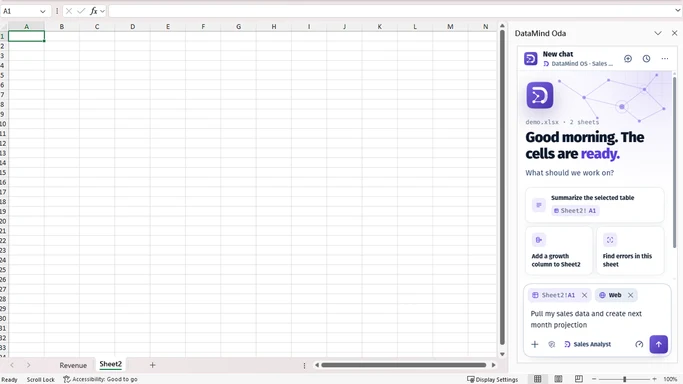
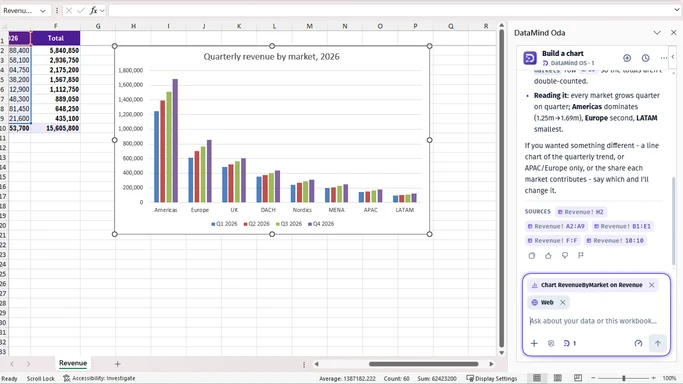
Open Oda from the Home tab. The pane sits next to your workbook, reads the parts it needs and builds the result in your cells.
What Oda does
From a question to a finished sheet
Ask your company’s Minds
Minds are AI analysts your company sets up in DataMind OS over its own data. Oda asks them for you and shows which Mind answered, the question it asked and the size of the result.
Pull governed data into a sheet
Bring a result into a new sheet or the cells you choose. Oda records where each pull came from, so it is ready to refresh, and your company’s access rules for tables, columns and rows still apply.
Work in the grid
Cells, formulas and formatting; sheets, tables and names; sort, filter, data validation, conditional formatting and comments; charts and pivot tables; formula tracing and error checks.
Read the files you attach
Attach PDF, Word, PowerPoint, Excel, CSV and image files to a message. The files stay on your computer; the text and images Oda reads from them go to the AI model with your message.
Run code in a sandbox
For statistics, forecasts and steps the built-in tools cannot take, Oda writes Python or Office.js code and runs it in a sandbox inside the pane, with no network access.
Web, skills and connectors
Where your administrator allows it, Oda searches the web, reads web pages, follows your company’s skills and uses the connectors your administrator adds.
Also in the pane
- Chat history for each workbook. Each workbook keeps its own chats on your computer, so you can pick up where you left off.
- Memory and instructions. Notes Oda keeps for you and instructions you write for every chat, stored on your computer. Both stay off until you turn them on.
- Rate and report answers. Mark an answer as good or not helpful, or report it. Ratings and reports go to your organization’s DataMind workspace, where your administrators review them.
- Choose a model. Where your administrator allows more than one model, pick the one Oda uses.
Control
You stay in control
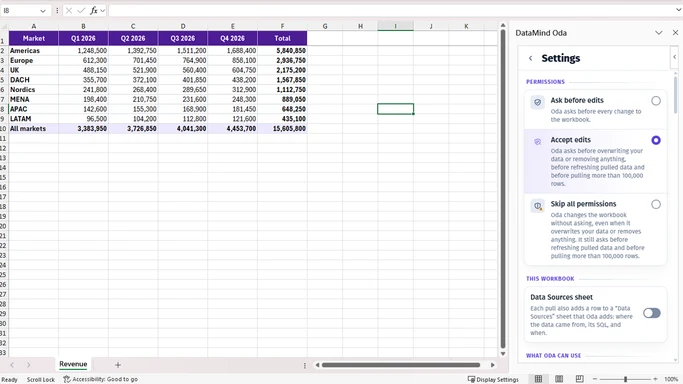
- Permission modes. Choose Ask before edits, Accept edits (the default) or Skip all permissions in Settings.
- Every change on record. Every reply that changes the workbook lists the changes, with Show on sheet and Revert turn.
- Cited cells are links. Click a cell Oda cites in an answer to select it in the sheet.
- Your administrators decide. They choose who uses Oda in Excel and which features are on for your company.
AI and your data
How Oda uses AI and your data
Oda is an AI agent. It uses large language models to understand your request, read the parts of the workbook it needs and decide which steps to take. AI can make mistakes, so review answers and changes before you rely on them.
- Apart from loading its own files from excel.datamind-oda.com and Microsoft’s Office libraries, the add-in talks only to the DataMind workspace you sign in to, which runs on your organization’s servers or is hosted by DataMind.
- Your messages, the workbook content Oda reads and the text and images of attached files go to the AI model through DataMind’s AI gateway, which routes only to zero-data-retention model endpoints and does not keep the content of Oda’s requests.
- If you turn them on, your memory notes and instructions go to the AI model with your messages too.
- Your administrators control logging in the workspace.
- Chats and attached files stay on your computer. Signing out of a workspace deletes its chats and files there.
Requirements
- A DataMind OS subscription.
- The DataMind Oda in Excel permission set from your administrator: Use DataMind Oda, Use Minds from DataMind Oda and Use DataMind Oda in Excel.
- Excel on Windows (Microsoft 365, or Office 2021 and later), Excel for Mac on a Mac with Safari 17.4 or later, or Excel on the web in a current browser. Excel on iPad is not supported.
- English. Oda in Excel is in English.
- A DataMind workspace your computer reaches over https, recent enough to allow Oda from Microsoft Marketplace.
If Excel or your browser does not keep your DataMind sign-in, DataMind Oda asks you to sign in each time you open a workbook. Your chats stay on this computer.
For IT
Excel needs to reach these addresses over https:
excel.datamind-oda.com, which serves the add-in;appsforoffice.microsoft.comandajax.aspnetcdn.com, which serve Microsoft’s Office libraries;- your DataMind workspace.
If your DataMind runs inside your company network, install Oda for Excel from your DataMind instead: in DataMind OS, open Universe, then the DataMind Oda card, then Excel.
How to get it
Oda in Excel comes with DataMind OS
If your company runs DataMind OS, ask your administrator. If not, talk to us.